
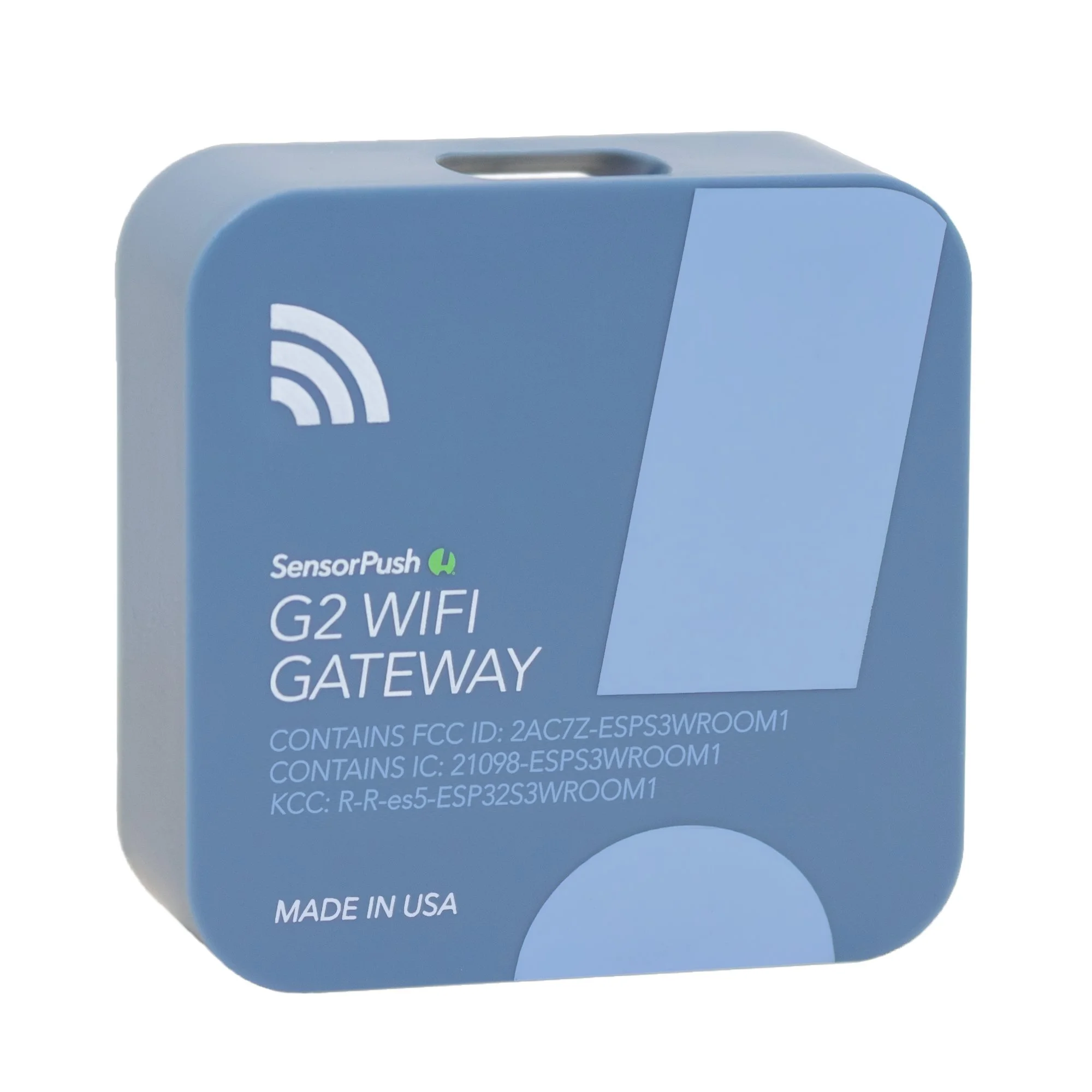
 Image 1 of 12
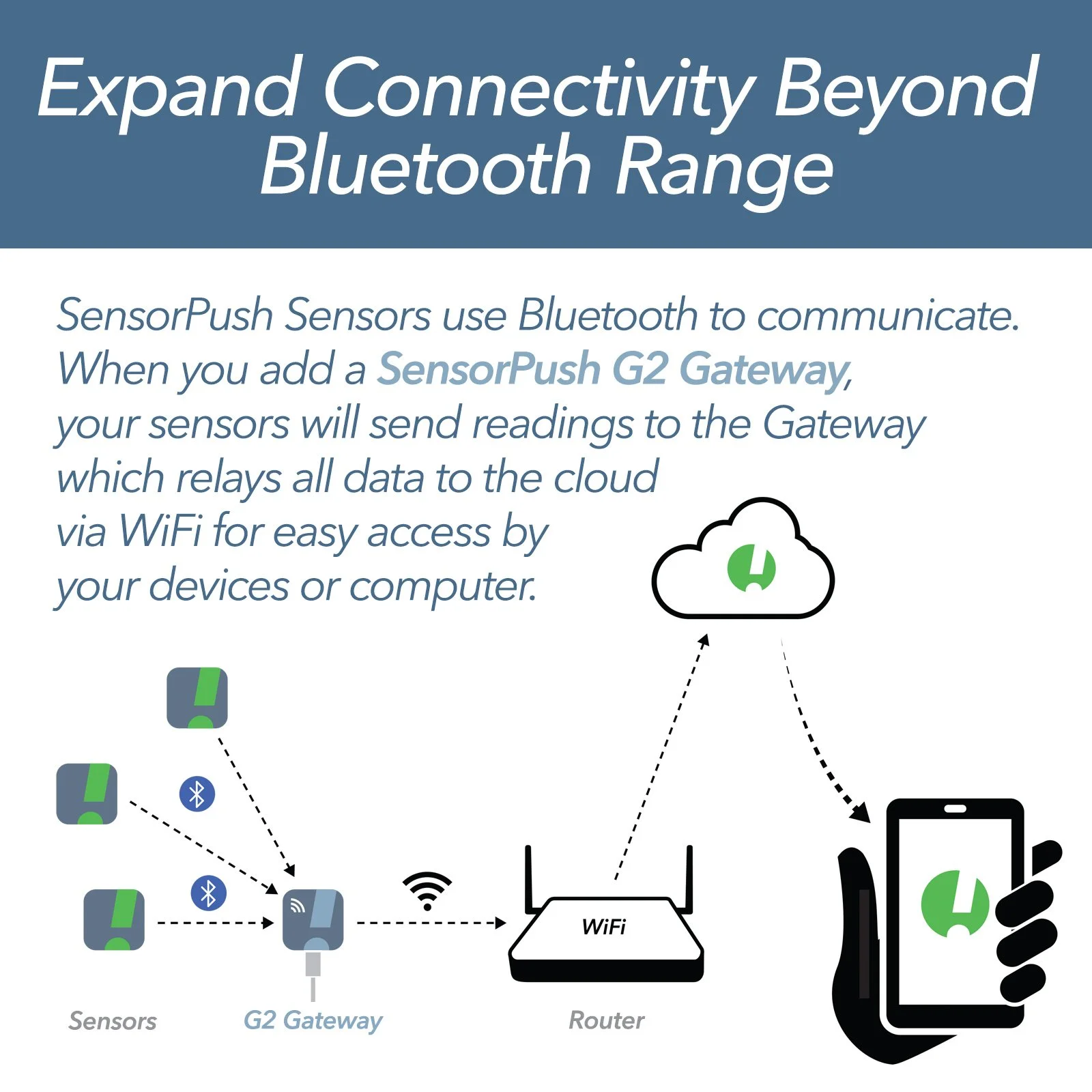 Image 2 of 12
 Image 3 of 12
 Image 4 of 12
 Image 5 of 12
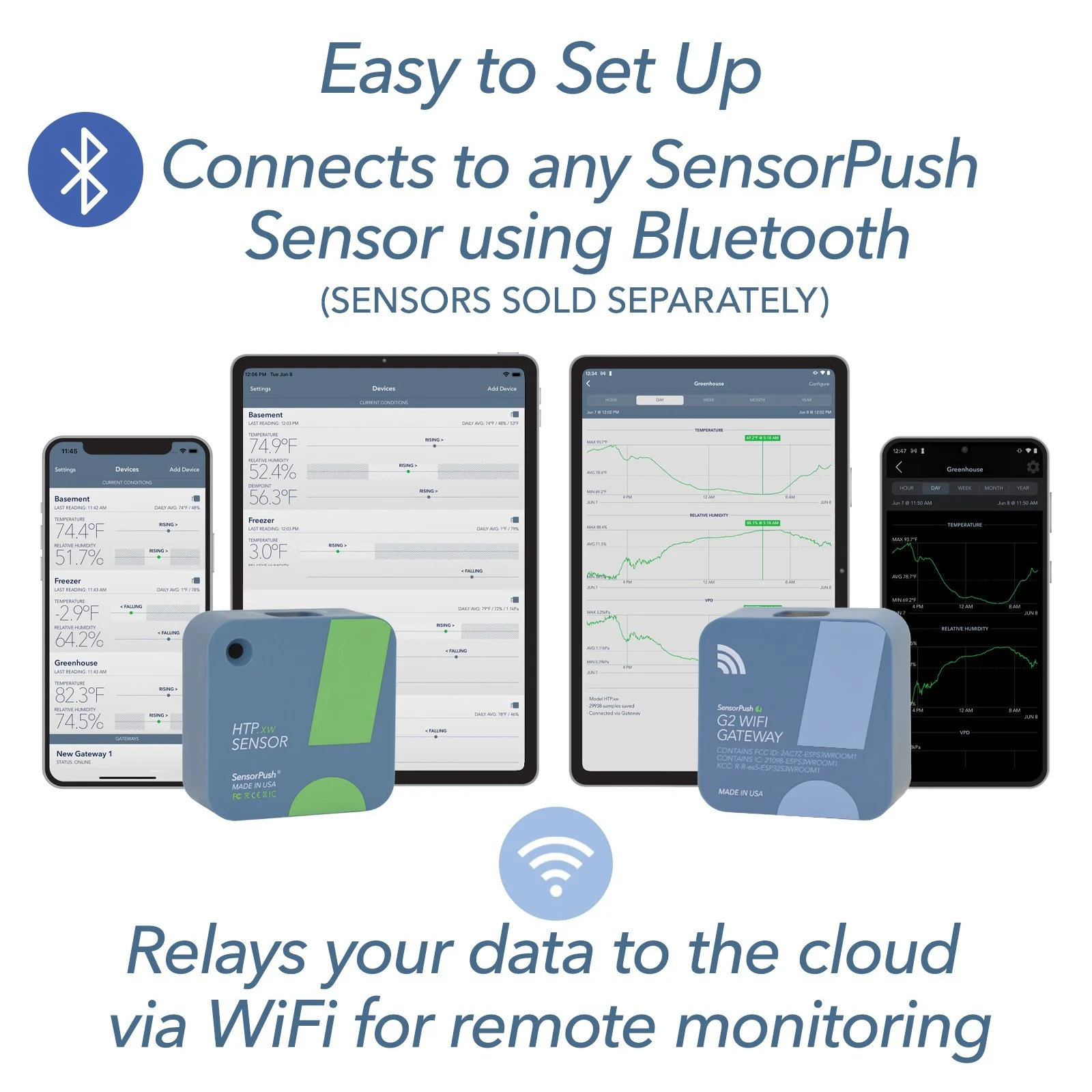 Image 6 of 12
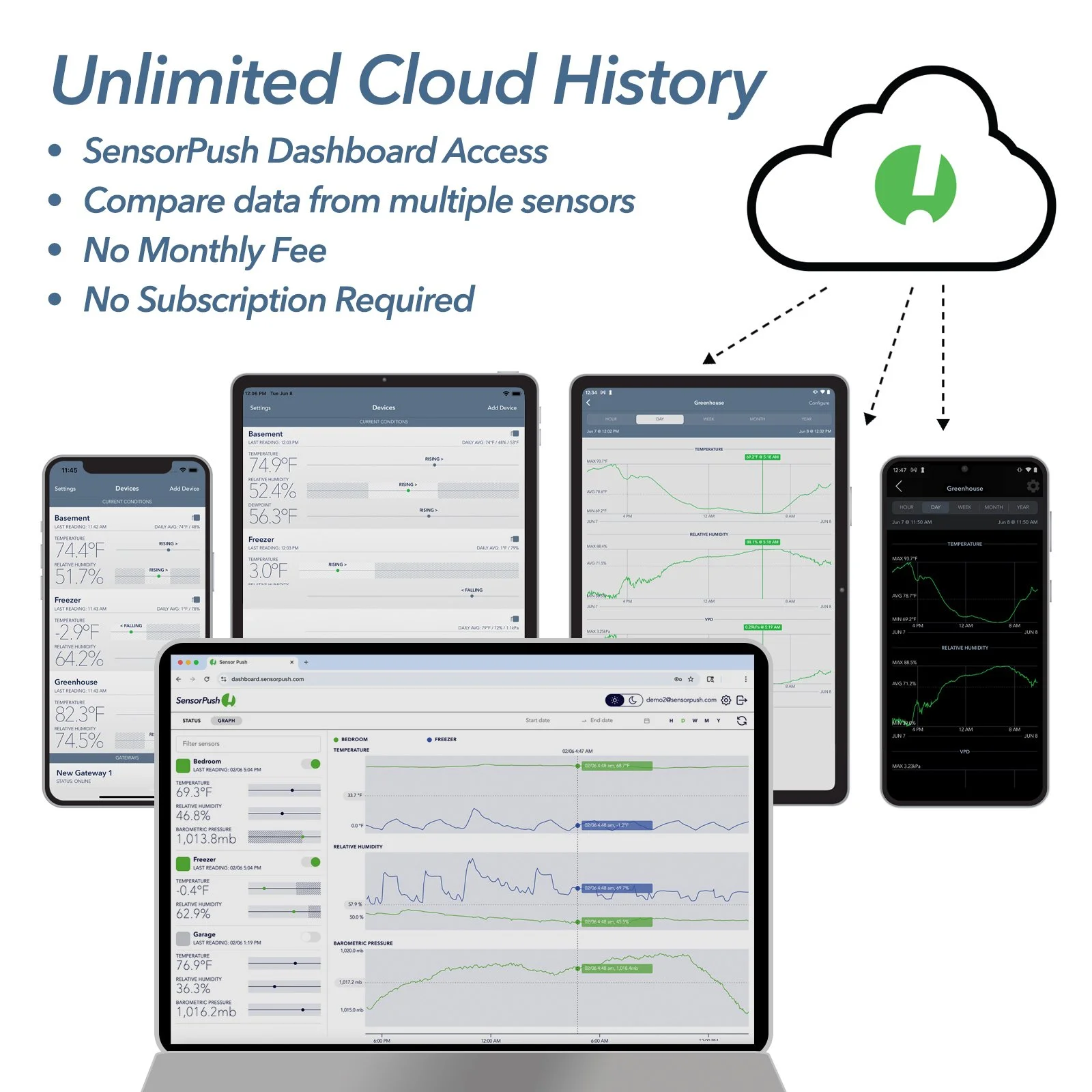 Image 7 of 12
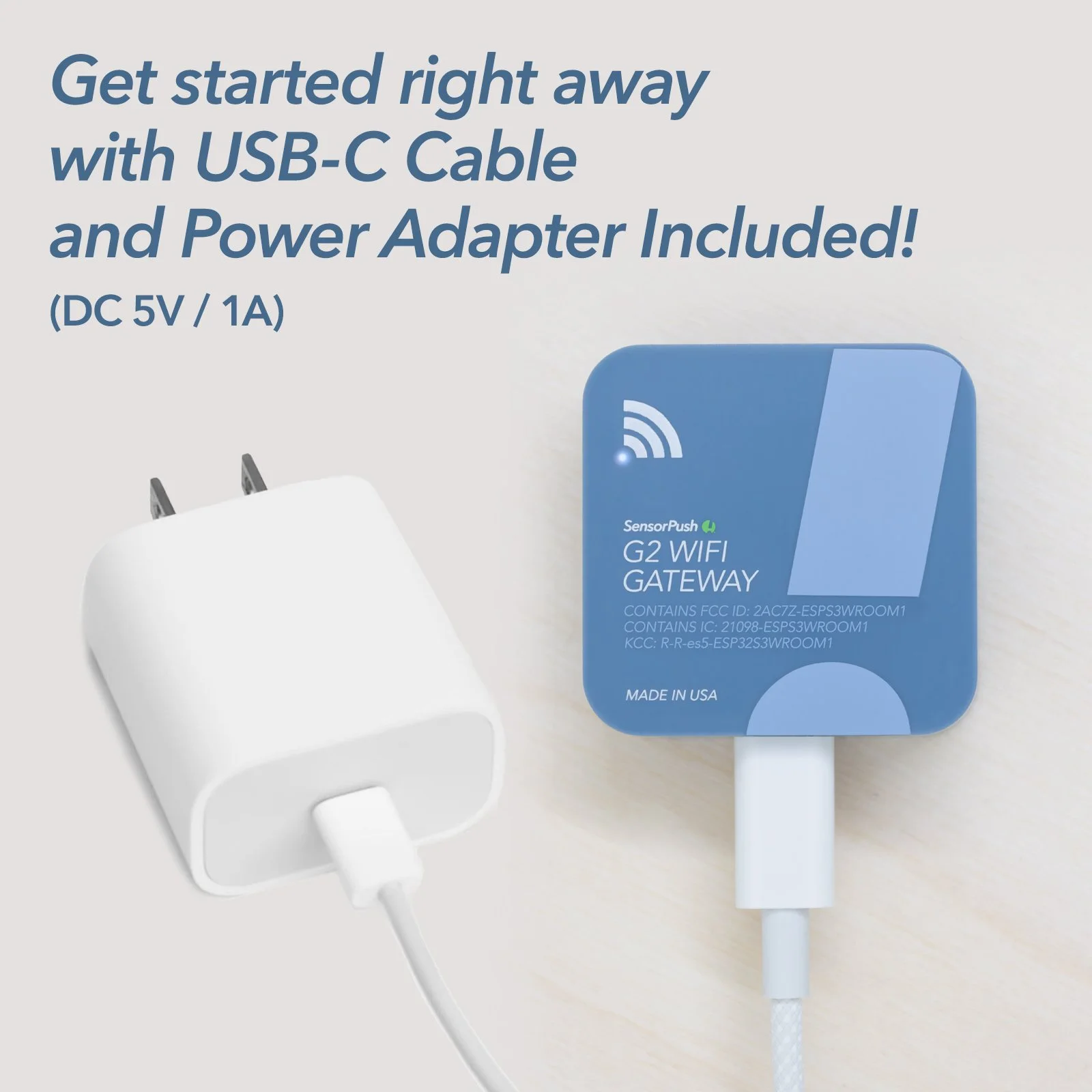 Image 8 of 12
 Image 9 of 12
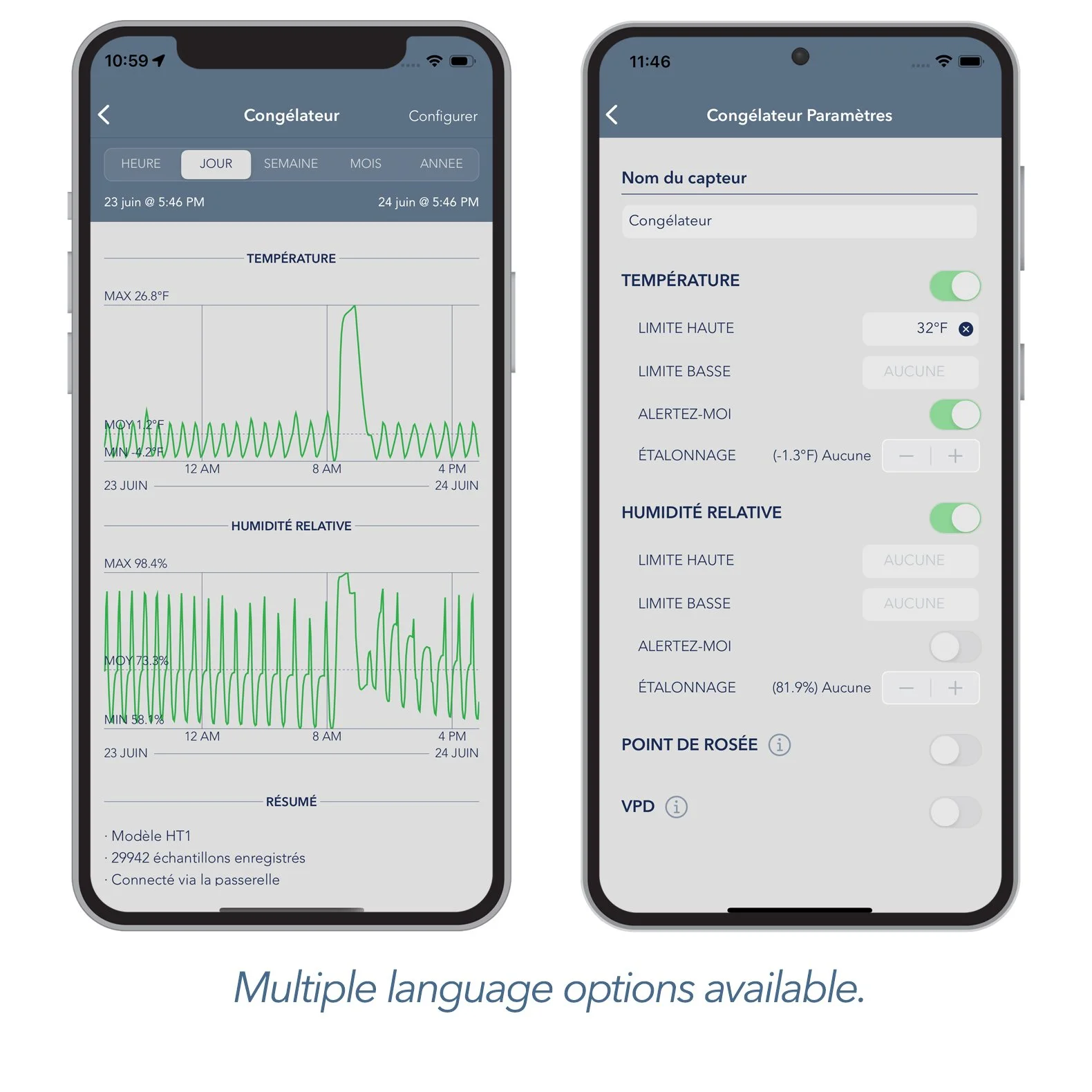 Image 10 of 12
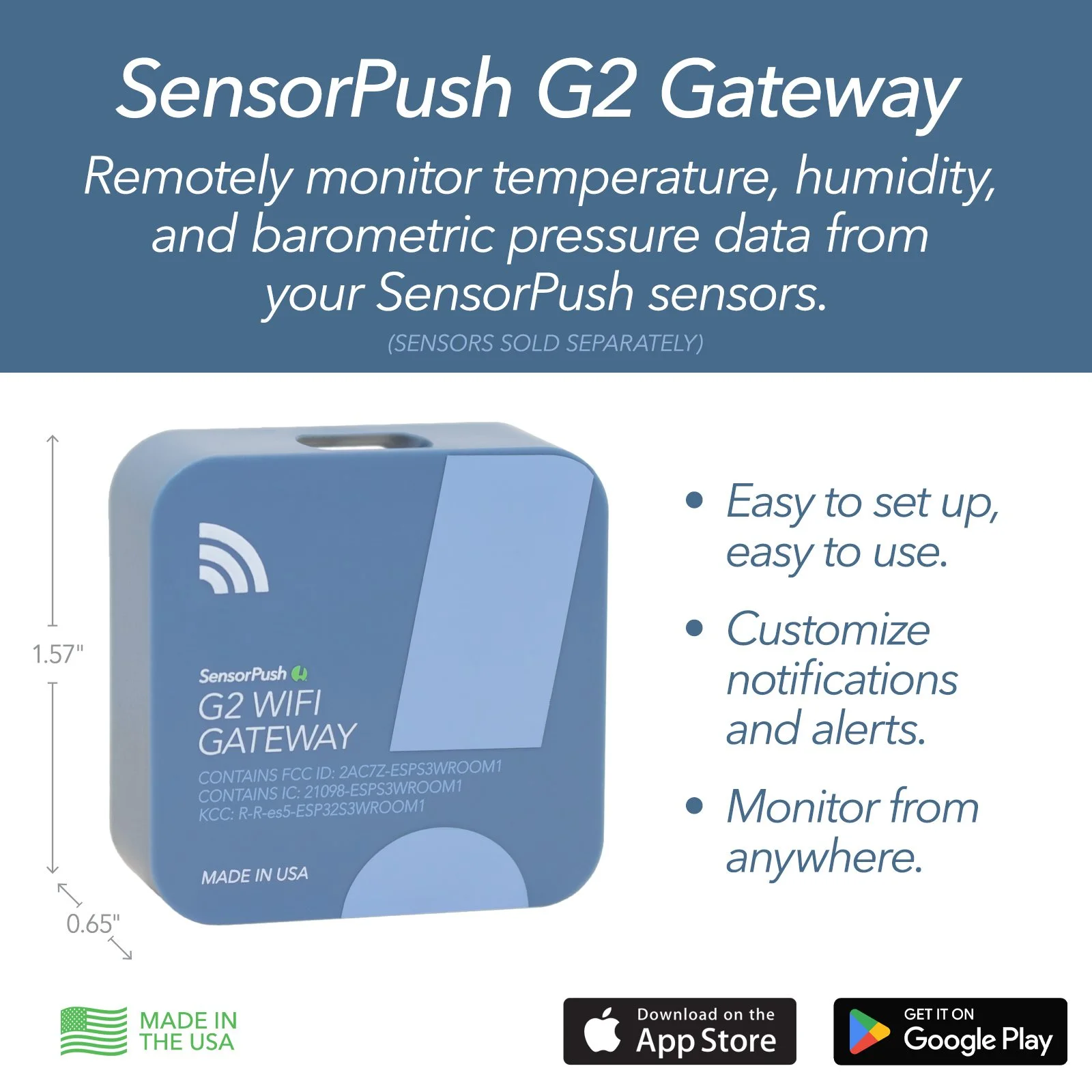 Image 11 of 12
 Image 12 of 12
Our sensors use Bluetooth LE to communicate, so without a Gateway the range is limited to Bluetooth range (e.g. around the house). This works well if you only need the data while on site with the sensor. If you would like to monitor SensorPush sensors remotely (e.g. away from the house), you need to use them in conjunction with a SensorPush WiFi Gateway. The Gateway relays the data of any in-range SensorPush sensors to the internet using your local WiFi or Ethernet to your network.
The simple setup process connects your G2 WiFi Gateway to the internet via WiFi, and links it to your SensorPush cloud account. This account is included with the purchase of a G2 WiFi Gateway and is easily created during setup. Once online, the Gateway receives data via Bluetooth from any in-range SensorPush sensors and relays that information to our web-based service (a.k.a. "the cloud").
The SensorPush app can then retrieve the data from the internet, so you can access it from anywhere. As before, the system has been designed to be as flexible as possible. Multiple Gateways on one account? No problem. Multiple phones monitoring one account? Of course. Just log in each device using the same email address and password and your data is instantly synchronized across devices for easy access by family members, employees, house sitters or anyone you wish.
When a sensor is renamed or alert settings are changed, the updates are reflected on all connected devices within moments. When you add new sensors, just pair them with one device. The Gateway and all other devices will automatically import them and begin monitoring right away.
Additionally, if all of your sensors are within range of a G2 WiFi Gateway, you can now disable Bluetooth within the SensorPush app, or even on your phone (once setup is complete) for improved battery life.
Lastly, we designed the Gateway to work seamlessly with the existing sensors, so those of you who have already purchased our sensors are all set.
The WiFi Gateway adds a lot flexibility to monitoring your sensors. For example, there's no set limit to the number of sensors you can monitor with a single Gateway.
Similarly, there’s no set limit to the number of mobile devices that can simultaneously log into a single account. If several people want to get the same alerts about the same sensor on their individual smartphones, they can.
Another benefit of the Gateway is that it's not a mobile device. A Gateway doesn’t have to go where you go. The Gateway stays with the sensors when you leave and it stays in a location that’s best for communicating with your sensors. In quite a few cases, the best location for a Gateway to communicate with your sensors might be some place you don’t visit often even if you are frequently nearby, like in your basement, attic, barn, or storage area. You might want to experiment a bit to find a place that has the best coverage of your sensors and still maintains a stable WiFi connection.
Yet another benefit to the Gateway is that there is a web-browser based dashboard with added data visualization tools and other features such as email alerts that can only be enabled through internet access. In fact, you can even set up a list of multiple email addresses to receive email alerts.
- Router: Verify that your WiFi router is set to 2.4GHz or "dual band" mode. 2.4GHz is the most common default setting for WiFi routers, so if you haven't changed that specifically, it's likely okay as it is and probably doesn't need adjusted.
- Prepare Mobile Device: Make sure your mobile device has Bluetooth turned ON, and that it’s connected to WiFi or cellular data.
- Set Up: Plug one end of the USB-C power cable into the Gateway and the other end into the outlet adapter. Then plug the adapter into a power outlet. The LED status light (near the top left of the front of the Gateway) should cycle through a range of different colors when the G2 is first powered up (or after factory reset).
- Download or Update App: Visit Google Play or the Apple App Store to download or update the SensorPush app.
- Add Device: Once installed, open the app and start by tapping the Add Device button in the upper right.
- Add Gateway & Log In: Tap Add Gateway. Your mobile device will form a temporary connection to the Gateway. The LED Status Light will begin to pulse blue. (It may take a minute or two to pair. If it takes longer than that, please restart the mobile device and also the Gateway and then try again.) Once paired, you will then get the option to sign up for an account (or log in if you are not currently logged in to an existing account).
- Connect to WiFi: After you have created or logged in to your SensorPush account, choose a 2.4GHz WiFi network to use with your Gateway and enter your WiFi password.
- Status Online: The LED Status Light on the G2 Gateway will display a slowly pulsing white light when it is connected. Your Gateway will also appear in the app at the bottom of the list of Devices. After a few minutes its status should be “online,” and any sensors that are in range of the Gateway will display a small Gateway icon. If the Gateway does not show up as “online” within a few minutes, refresh this screen to check status.
- Please try to keep the app up to date for best performance.
- Lastly, if your network has special security requirements, and you need details such as a MAC address or port forwarding info, please check the Specifications table on this page for more information.
If you have any issues, see the “Basic Troubleshooting” section on this page, the Support section of our website, or contact Support at support@sensorpush.com.
If you continue to experience difficulties after reviewing these basic troubleshooting tips below, please review our FAQ section and/or contact us directly at support@sensorpush.com and a member of the engineering team will get you back to you asap.
- LED Status Light Does Not Display the Expected Color Cycle During Set Up or Factory Reset:
After plugging in a G2 Gateway for the first time (or after a factory reset), the LED light on the front will display a cycle through different colors. Don’t worry, that means it’s functioning correctly. If the LED is solid red or flashes orange, it indicates a hardware or startup fault. Unplug the gateway and plug it back in. Contact support if it returns. See our LED Status Guide page for more information. - WIFI PASSWORD ISN’T ACCEPTED
If the WiFi network password isn’t accepted, return to the “Devices” screen using the back arrow in the upper left corner of the app. Then scroll to the bottom of the Devices list, select the Gateway, and choose the “Configure” option. This will restart the network selection and password entry process. - WIFI NETWORK DOES NOT APPEAR AMONG LIST OF AVAILABLE WIFI NETWORKS
If your WiFi network does not appear among the available WiFi networks, please verify that the router is communicating via 2.4 GHz or is in “dual band” mode, because the Gateway requires 2.4 GHz. If not, then please turn on dual band/2.4GHz and try again. If your network uses a hidden SSID, use the “Join other network” option to enter it manually. - NO ‘SIGN UP’ OPTION FOR NEW GATEWAY ACCOUNT
If you do not already have an existing SensorPush Gateway account and the app does not give you the option to “Sign Up” for a new one (you only get the option to “Log In” to an existing account) please contact support@sensorpush.com right away. - YOU GET AN ALERT THAT THE GATEWAY IS OFFLINE OR MISSING
This means that the Gateway has not communicated with the SensorPush cloud for an hour or more. Things to consider are: 1) Does the breaker for the Gateway still have power? 2) Is the power cord to the Gateway unplugged (or accidentally connected to a switch that was turned off)? 3) Is the internet source down or unavailable (the WiFi router or modem needs to be rebooted)? If you are unable to determine the cause, please contact support@sensorpush.com. - App Shows GATEWAY STATUS as “UNKNOWN” OR “OFFLINE”
If the app says a Gateway is offline but you have not received an alert indicating it is missing, try doing a pull-down refresh on the main “Devices” screen of the app. A pull-down refresh is where you use a finger to pull or swipe down on the screen which will prompt your device to contact the server and load any new sensor and Gateway data from the cloud.
Each time you open the app, the app checks in with the SensorPush cloud to fetch updated data, similar to the way an email app checks a server for new emails. There can be a few moments before it gets its update. If so, this is a normal delay. If you do a pull-down refresh and it does not update within a few moments, reach out to support@sensorpush.com. - SECOND GATEWAY IS NOT FOUND If you are setting up multiple Gateways and the second unit is not found by the app, you might need to restart your phone so its Bluetooth is reset. Then try again.
Lastly, broadcast/reception range is an important consideration whether you use a G2 WiFi Gateway or not with your sensors. We have an article about range that details some specifics on the topic as it relates to SensorPush products.
We have an API available for the Gateway cloud. Documentation is available here: http://www.sensorpush.com/api/docs. In order to use the API, you need to log in to the Gateway cloud dashboard to activate your access.
If you are not yet familiar with APIs, an “API” is an acronym for “Application Programming Interface.” It’s a set of tools that allow programmers to develop software that communicates with our cloud. This makes it possible for these developers to create special purpose applications on top of SensorPush sensor data. For example, someone might have some sensors inside a greenhouse, and they want to trigger a heater to turn on when the temperature drops below a certain level. They could code their own special application that communicates with the SensorPush cloud service to check the temperature of their greenhouse. Their application would then be able to trigger some custom hardware they’ve created to switch on a heater.
NOTE: If you have HT.w and HTP.xw sensors, you can view their data and historical graphs on the web browser dashboard at dashboard.sensorpush.com.
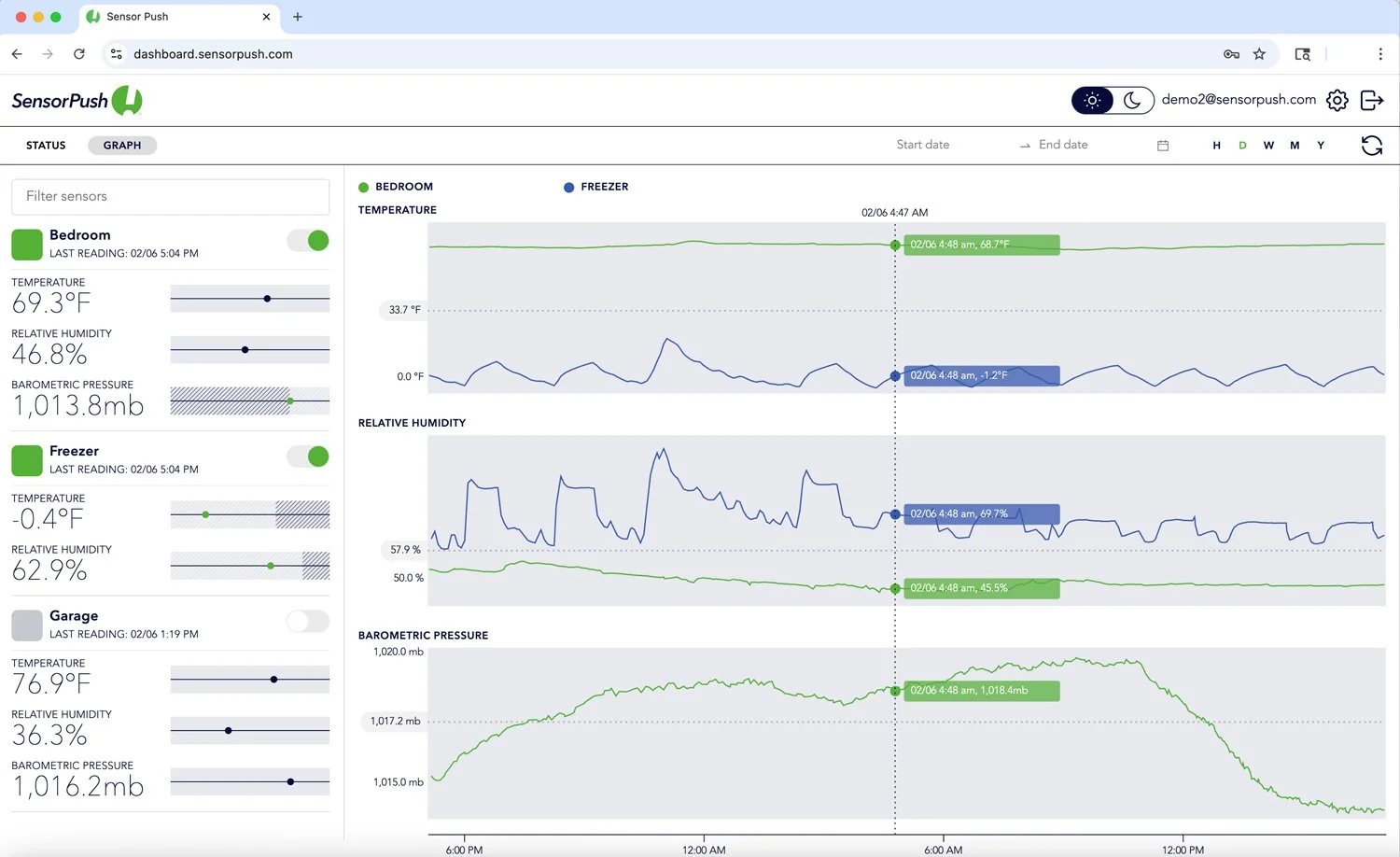
A web browser dashboard makes it easy to view your data such as Gateway status and sensor readings on a laptop or desktop. You can view graphs for sensors, and even layer multiple sensors into a single graph.
The dashboard also allows you to configure certain features specific to the Gateway cloud such as changing your account email address or its password. One major feature you can control through the web dashboard are email alerts. Once you log in, go to the settings icon in the upper right where you will find the option to activate email alerts and other features (e.g. change the password or the email address for the account). Also, the email alert system allows you to create a list of multiple email addresses to receive alerts.
Here is the link to the web dashboard beta: https://dashboard.sensorpush.com


Some other useful notes about the web dashboard in general...
In the dashboard UI, there are two primary modes (selected in upper left). They are the "Graph" and the "Status" modes. Graph mode is the time series data from sensors. Status mode is the current conditions, the signal strength, the last reading, and other details for your sensors. In this view, red indicates that the sensor's last reading is out of date. This is particularly useful for accounts with large numbers of sensors.
In the Graph view, sensors are listed and can be toggled on/off by using the switch to the right of the sensor's name. Once toggled on, that sensor's data appears in one of two viewing options: "Layers" or "Streams."
In the Layers view, multiple sensors can be plotted together on the same graph. In the Streams view, sensors can be plotted alongside one another in parallel. The parallel view will be particularly important once we have sensor types other than temperature and humidity.
The rest of the controls are relatively straightforward if you've used online graphing tools before (e.g. Google Finance). There are time controls to the right, and near the top of the graph toward the left is a small flag that allows you to toggle the scroller pin on and off, etc.
One other note, if you prefer Celsius, you can change this in settings (gear icon upper right).
If you have any questions, you can reach me or the other engineers at support@sensorpush.com and be sure to put [dashboard] in the subject line.
Specifications
| WiFi Frequency Band | 2.4 GHz |
| Connectivity | No ethernet. WiFi only. |
| Width | 40 mm / 1.57 in |
| Height | 40 mm / 1.57 in |
| Depth | 16.5 mm / 0.65 in |
| Weight | 12 g / 0.42 oz |
| Power | DC 5V / 2A USB-C cable and power adapter ship with device. |
| Cloud API | Here is a link to the docs for the SensorPush Gateway cloud API. In order to gain access, you need to log in to the Gateway web dashboard and accept the terms. |
| Firewall Settings | The SensorPush G2 gateway only makes outbound connections; no inbound ports need to be opened. • TCP 443 (HTTPS/MQTT over TLS): Required. Used for the cloud connection and firmware updates • UDP 123 (NTP): Required. Used to keep the gateway’s clock accurate. • You may also see outbound connections on TCP 8883. The G2 falls back to it if a connection cannot be established on port 443. It’s safe to allow, but not required. • The network must provide working DNS and automatic address configuration through DHCP. • Traffic to *.sensorpush.com must not be TLS-inspected or decrypted. The gateway authenticates with its own device certificate, which an inspecting proxy can’t pass through. If your network inspects TLS, add *.sensorpush.com to its exemption list. |
| MAC Address | MAC address information is available in the app during set up. It will appear once the Gateway has connected to the mobile device during configuration. To obtain MAC address information for a Gateway that's already set up in the app, first make sure you are on site with the Gateway (e.g. same room). Then, open the app to the main screen, select the Gateway from among the devices and then select the "configure" option. The app will then temporarily connect your mobile device to the Gateway using Bluetooth and provide you with MAC address information. |
| Alexa Support | https://www.amazon.com/SensorPush-sensorpush/dp/B084JVM7W1 |
| Advanced Networking | • The Gateway supports 2.4 GHz WPA2-Personal, WPA3-Personal, and open WiFi networks. Web-based authentication, such as a hotel sign-in page, is not supported. • Your WiFi network needs to be able to configure clients automatically via DHCP. Static IP addresses and other custom settings are not available. • We utilize standard methods for securing the Gateway. Connections between the Gateway and the SensorPush cloud use encryption to protect sensor data, cloud commands, account login information, and other credentials. WiFi credentials sent from the app to the G2 Gateway are also encrypted. No incoming ports are required to be opened on the Gateway. |
| Wireless Types Supported | 802.11 B/G/N |